Saturday, March 17, 2018

Root 3 CNC - Box Carriages

The first parts built were the box carriages.  A number of these are needed for the machine (4 total).  Relevant official documentation can be found at:

https://rootcnc.com/machines/root-3/animated-assembly

For each half of the box carriage, I used the following:

  • 1x 3D Printed Part
  • 4x M8 x 25mm bolts (1.25mm threads)
  • 4x 608zz type bearings
  • 4x M8 nylon lock nuts
  • 8x M8 washers


Push the bolts through and add washers:


Add skate bearings:


Add another washer and a nylon lock nut:


Lather rinse repeat 8 times.

To assemble two halves into one full carriage, I used the following:

  • 2x box section subassemblies (from above)
  • 4x M8 x 75mm bolt (1.25mm threads)
  • 8x M8 nuts
  • 8x M8 lock washers
  • 4x M8 nylon lock nuts
  • 6061 Aluminum Rectangular Tube 1/8" Wall Thickness, 1" High x 1" Wide
    • length of tube will be specific to how large you are making your cnc router


Insert the bolts, and cover with a lock washer and standard nut (tighten):


Set the aluminum box tube in place, then add a standard nut and lock washer:


Add the other box section half assembly, then top with lock nuts:


Tightening the middle and top nuts took some trial-and-error.  I used ABS for the 3D printed parts, so some of the larger parts are slightly skewed/warped, so tightening was done a little at a time until all bearings were in contact with the box tube and spinning freely.  When complete, the assembly should travel freely on the box tube, and the tube should be able to be removed/re-inserted without too much hassle.

Tuesday, March 13, 2018

Building a Root 3 CNC

This post begins a series of unofficial build documentation posts for a Root 3 CNC machine.  The site for the open source/hardware project, as well as its 3D printed parts can be found at the following urls:

https://rootcnc.com/machines/root-3/
https://www.thingiverse.com/thing:1750276
https://www.facebook.com/groups/1023078667749894

Special thanks goes out to sailorpete for sharing his design.  Also special thanks to any and all who answer my rookie questions on the facebook group.

Since I have never attempted a build like this before, I plan to document the steps as I have performed them, knowing full well that some of it may not be optimal or even fully correct.  Odds are they will certainly be done in the wrong order.  Hopefully when I get to the end of this process I will have a fully functional CNC machine, and even if I don't, I suspect I will have learned quite a bit during the process.

The general principals I'll try to follow during this build include:

  • source parts from convenient vendors
    • ie, Amazon and McMaster will be heavily used for convenience, knowing full well that they may not always be the most inexpensive option.  Time is at a premium for me, so the convenience is worth the cost
  • when convenience vendors are not an option, fall back to AliExpress or eBay
  • try to use quality parts, but if I need to cut corners a bit for time's sake, I won't lose sleep over it

I started by downloading the file bundle from Thingiverse, and making a cursory pass through the BOM spreadsheet.  After that, I started diving in, printing and ordering parts as needed.

The one thing I wish I had known when I started (to make reading the official docs/plans easier)  was an axis reference.  Marking up one of the photos from the Root 3 site, I have included that below.


Due to time constraints (and long shipping delays from overseas on some of the parts), I suspect this project will take me months to complete.  Hopefully these posts will save someone else time in the future...

Tuesday, March 14, 2017

Installing Bash on Windows 10

The Windows Linux Subsystem (WSL) is now available for beta on Windows 10.  Installing it was fairly simple, and included two obligatory reboots.

Start in the Settings app, and open the "For developers settings":


Click the "Developer mode" radio button, and answer "Yes":


After a bit, a prompt will tell you its time to reboot:


After the reboot is finished, use "Programs and Features" to enable WSL:


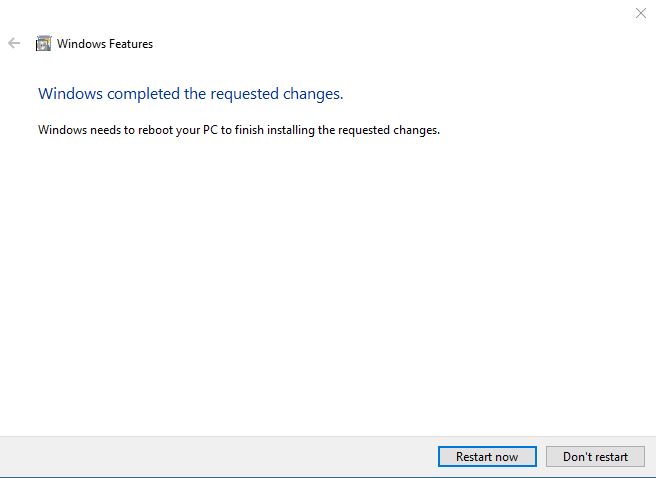
After a bit, a prompt will tell you its time to reboot (again):


After the reboot is finished, use the start menu to launch "Bash on Ubuntu on Windows" (you will be prompted to accept a license agreement and provide a username/password to create a Linux-based user account):


After a bit more grinding, the installation is complete.  Your first order of business will be to right-click | Properties for Bash and change the font to something other than the dreadful default (in my case, back to Lucida Console).


Finally, spend a few minutes to upgrade via the usual Linux commands issued in your newly installed bash console:

  • sudo apt-get update
  • sudo apt-get upgrade

Windows finally has a "real" Linux console.  Here's to hoping it makes it out of beta and gets proper care and feeding going forward...

Sunday, March 5, 2017

Cutting 2020 Aluminum Extrusion

Aluminum extrusion can used for building cages/frames for electroincs projects.  There are any number of ways to cut it (aluminum is a very soft metal), but for my money, a jigsaw with a metal cutting blade is the easiest.  The blades are inexpensive, easier to change out then a blade on a table or miter saw, and work just as well.  The material I use is:


Keeping square cuts can be a challenge, but jigs can be used to make the job easier.


Once the material is cut to length, it can be assembled with corner connectors or brackets.  The center of 2020 aluminum extrusion can be tapped to accept a 6mm screw using the materials below:


Cutting 12 sections of aluminum extrusion will allow you to assemble a cube suitable for a 3D Printer...


Saturday, February 4, 2017

Filename too long

While recovering data from an old NAS, I encounter a folder that would not delete after being restored on a USB Drive.  The error Windows was throwing was:

The filename would be too long for the destination folder.   You can shorten the file name and try again...

After a bit of research, the following workaround was used to successfully delete the folder.

  • open a command prompt
  • cd into the nested directory folder (i went about half way down)
  • subst m: .
  • j:
  • rmdir /s remaining_folder_name
  • c:
  • subst /d m:
This effectively assigns part of the large nested directory folder to the m: drive, and allows you to switch to that drive and delete the remaining nested folder.

Friday, February 3, 2017

Backup Sonos Playlists

As great as the Sonos system is, it has one major shortcoming - there is no way to backup your playlists.  Why this is, I have no idea - I can think of absolutely no reason why you would not want to provide this kind of basic functionality. Luckily, someone has created a workaround for this.  Listed below are the basic steps on setting up a Mac running OS X to run the spl utility.

First, add some utilities:

  • sudo easy_install pip
  • sudo pip install soco

Then pull the spl master from GitHub, located at the following location:

Once installed you can run playlist backups with either of the following commands
  • ./spl.py -x MYPLAYLIST
    • this will export a specific playlist
  • ./spl.py -X
    • this will export all playlists

The utility exports XML files (one per playlist), with each track listed by name along with its associated location.

Wednesday, February 1, 2017

Synology DS716+II NAS File Transfer Slowness from Windows 10

With the Synology DS716+II NAS fully set up for link aggregation (a 2Gbps pipe to the home network), I was expecting great things for my first file transfer.  I used a single album music folder (mp4 files, about a dozen songs) as a test upload, and dragged/dropped it onto the network share, then waited... and waited some more - it was horrendous.  After 5 minutes, I cancelled the copy and began my usual ritual of cursing technology and every IT commercial vendor that came to mind. Per the Windows file transfer window, I was getting just around a 150Kb/s transfer rate.

The Synology Knowledge Base was fairly useless, and basically instructed you to make sure that your device was plugged in and you were not running any software which would consume CPU on your NAS.

I am not a network engineer by trade, but have played around with it enough to know that its just as much black magic and voodoo as it is science.  There are so many variables in play and parts that can go wrong, that its always a time consuming effort to track a problem to ground, and this was no exception.  I spent a number of hours working different combinations of switch settings (with/without link aggregation, MTU sizing, etc, etc), swapping out cables, rebooting devices, and if had a goat in my possession, the poor fella would have been sacrificed as well in attempts to appease the network gods.

Ultimately, the problem was traced to Windows 10.

Your mileage may vary, but for my network and workstation configuration, this configuration completely resolved my issue and pushed my transfer speeds from 100 Kb/s up to the neighborhood of 90 MB/s.

Control Panel | Network and Sharing Center | Change Adapter Settings | Ethernet (or your NIC here), then click Properties:


Then click Configure...:


Then switch to the Advanced tab:


Change Speed & Duplex from "auto negotiation" to "1.0 Gbps Full Duplex".  This instantly fixed my transfer speed issue (not even a reboot required).  The new transfer speeds can be seen below, and are much more in line with what I was expecting from a modern NAS.